- Community Home
- >
- Servers and Operating Systems
- >
- Servers & Systems: The Right Compute
- >
- Tech Tip: You’ve got the power! Or do you…?
Categories
Company
Local Language
Forums
Discussions
Knowledge Base
Forums
- Data Protection and Retention
- Entry Storage Systems
- Legacy
- Midrange and Enterprise Storage
- Storage Networking
- HPE Nimble Storage
Discussions
Knowledge Base
Forums
Discussions
- Cloud Mentoring and Education
- Software - General
- HPE OneView
- HPE Ezmeral Software platform
- HPE OpsRamp
Knowledge Base
Discussions
Forums
Discussions
Discussion Boards
Discussion Boards
Discussion Boards
Discussion Boards
Discussion Boards
Discussion Boards
Discussion Boards
Discussion Boards
Discussion Boards
Discussion Boards
Discussion Boards
Discussion Boards
Discussion Boards
Discussion Boards
Discussion Boards
Discussion Boards
Discussion Boards
Discussion Boards
Discussion Boards
Discussion Boards
Discussion Boards
Discussion Boards
Discussion Boards
Community
Resources
Forums
Blogs
- Subscribe to RSS Feed
- Mark as New
- Mark as Read
- Bookmark
- Receive email notifications
- Printer Friendly Page
- Report Inappropriate Content

Tech Tip: You’ve got the power! Or do you…?
HPE Power Advisor takes the guesswork out of adding “extras” to your server. Mark Simpkins shows you through its capabilities.

Covering a huge breadth of products from HPE ProLiant rack and tower servers to the HPC and AI behemoths that are HPE Apollo systems, to HPE storage solutions, there’s a wealth of capabilities here to guide you and take away the guesswork.
My HPE ProLiant MicroServer Gen10 Plus upgrades
I have a new base system with a quad-core processor, 16 GB DIMM, and one SSD. I wanted to add one SSD, two SATA hard drives, and another 16 GB DIMM. Keeping in mind that this server has an external 180W power supply, I needed to ensure the system could easily handle the extra requirements without issue—before I bought everything.
Doing this is simple: just select your input voltage, select your server, and use the “Config” button to reflect your desired configuration. I used a server utilization model of 80%, but you can scale that slider as you see fit.
Figure 1. Select your Server(s)
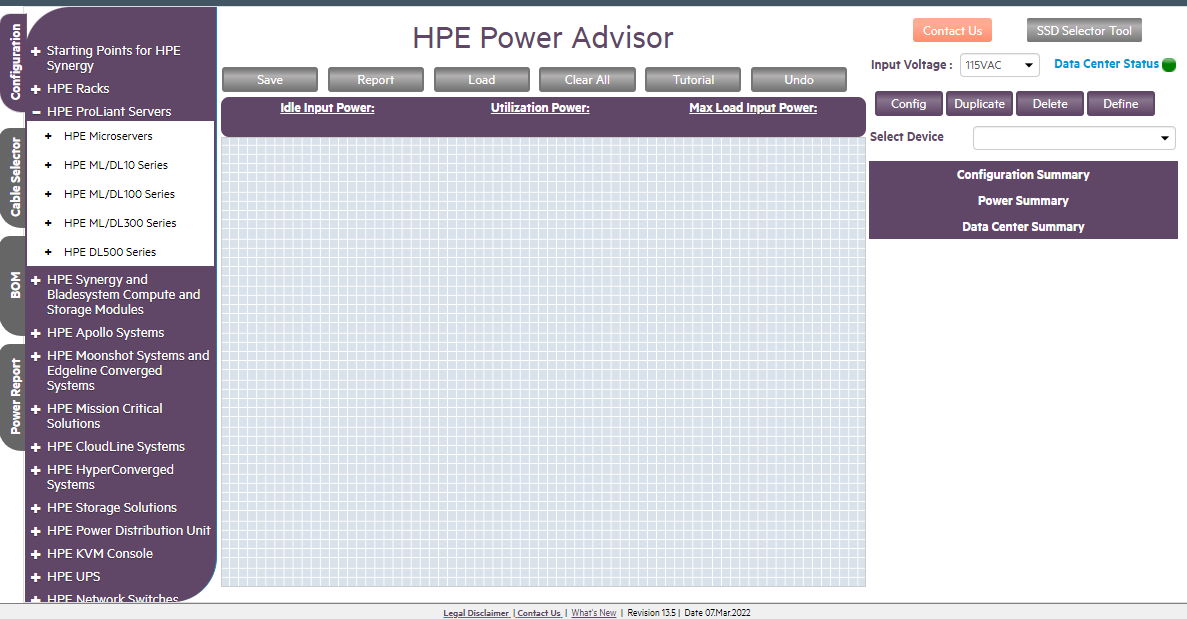
Figure 2. Build your configuration
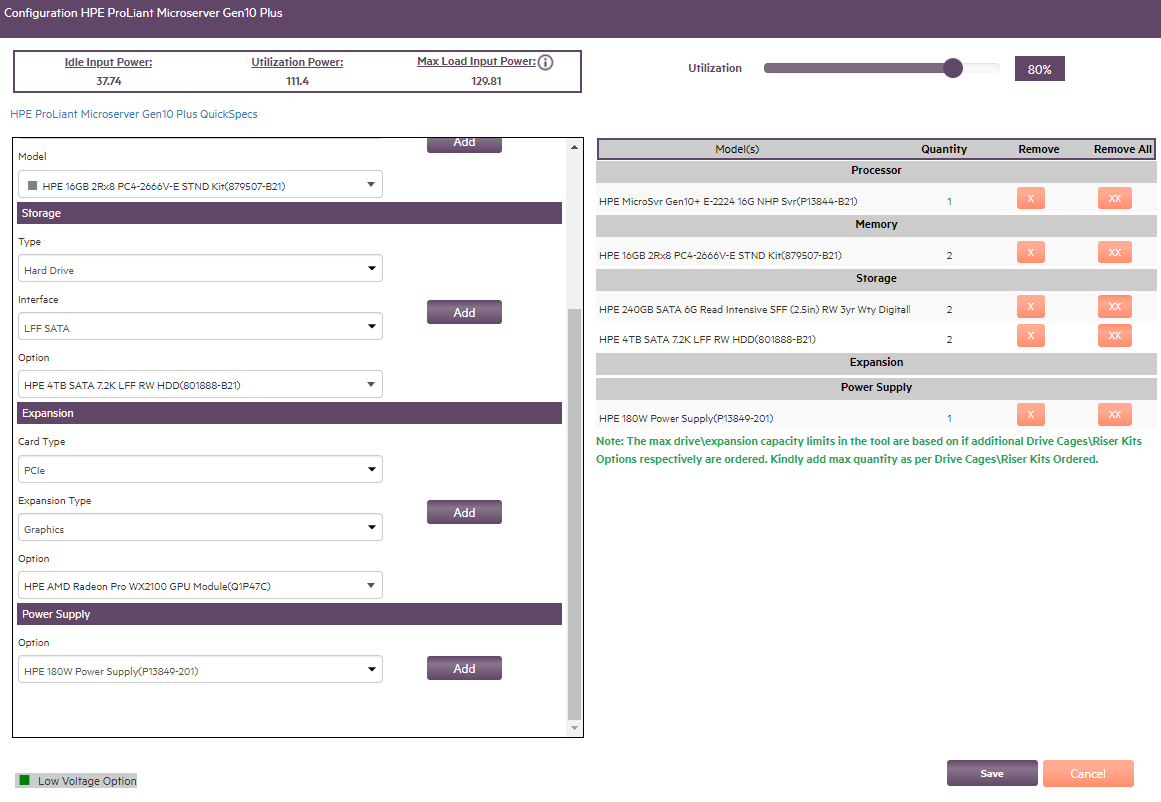
Figure 3. Configuration summary on the right
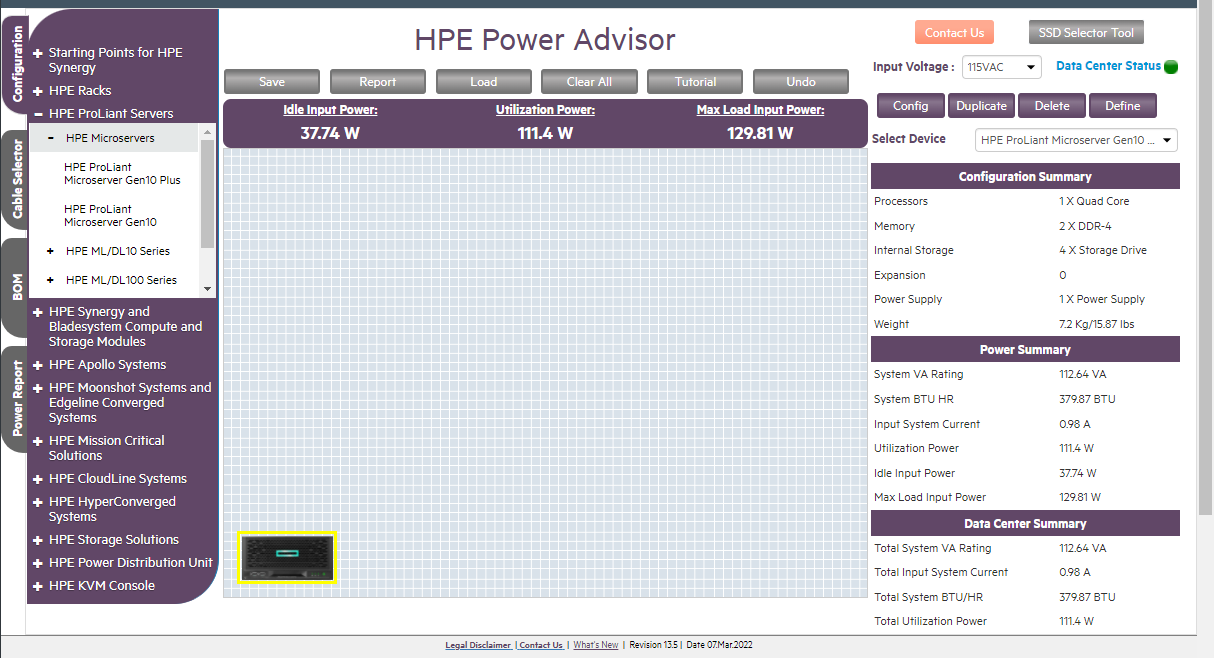
Figure 4. Generate a customized power report
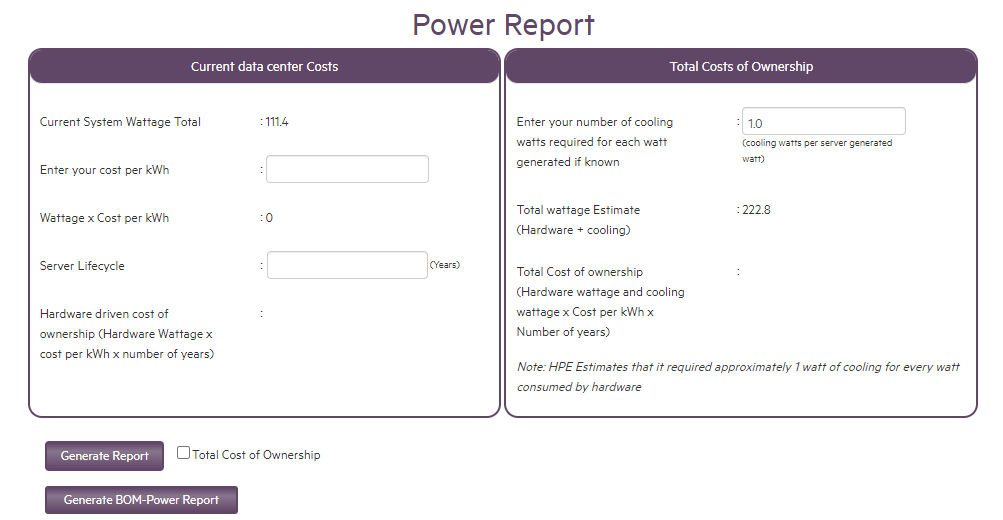
While this may seem overkill for a small server like this, it did put my mind at ease before I spent my own money on the upgrades. For someone building out larger systems and data centers, this could be a crucial tool to avoid mistakes, and the power report can be helpful to visualize and predict power costs beforehand. I suggest you build out a sample system and bookmark the page for reference.
Try out HPE Power Advisor and please comment with any questions or feedback.
Mark Simpkins
Hewlett Packard Enterprise
twitter.com/HPE_Compute
linkedin.com/in/mark-simpkins-526a941/
hpe.com/servers

marksimpkins
Mark is the marketing manager for the Small and Midsized Segment here at HPE. He blogs on topics of interest that can help our SMB servers and solutions customers and partners.
- Back to Blog
- Newer Article
- Older Article
- PerryS on: Explore key updates and enhancements for HPE OneVi...
- Dale Brown on: Going beyond large language models with smart appl...
- alimohammadi on: How to choose the right HPE ProLiant Gen11 AMD ser...
- ComputeExperts on: Did you know that liquid cooling is currently avai...
- Jams_C_Servers on: If you’re not using Compute Ops Management yet, yo...
- AmitSharmaAPJ on: HPE servers and AMD EPYC™ 9004X CPUs accelerate te...
- AmandaC1 on: HPE Superdome Flex family earns highest availabili...
- ComputeExperts on: New release: What you need to know about HPE OneVi...
- JimLoi on: 5 things to consider before moving mission-critica...
- Jim Loiacono on: Confused with RISE with SAP S/4HANA options? Let m...
-
COMPOSABLE
77 -
CORE AND EDGE COMPUTE
146 -
CORE COMPUTE
183 -
HPC & SUPERCOMPUTING
148 -
Mission Critical
91 -
SMB
169
